
Mastering Mobile Printing: How to Print from iPhone in 2026

Updated: 4 days ago
Want to know how to print from iPhone? Whether you need to print a PDF, photo, email, assignment, or business document, your iPhone can connect to a compatible printer wirelessly.
Apple's AirPrint makes printing simple without requiring additional printer drivers. However, if your printer or app doesn't support AirPrint, a dedicated printer app for iPhone can provide additional printing and document-management options.
How to Print from iPhone Using AirPrint
AirPrint is Apple's built-in wireless printing technology. It allows you to print from supported apps such as Photos, Mail, Safari, and other applications without installing additional drivers.
Before you start, make sure your printer supports AirPrint and that your iPhone and printer are connected to the same Wi-Fi network.
Set Up iPhone AirPrint
Check printer compatibility: Make sure your printer supports AirPrint. Many popular printer models from brands such as HP, Canon, Epson, and Brother support AirPrint.
Connect both devices to Wi-Fi: ConnectConnect your iPhone and printer to the same Wi-Fi network. This is required for normal AirPrint printing.
Open the file or photo: Open the document, PDF, photo, email, or webpage you want to print.
Tap Share and select Print: Tap the Share or Actions button and choose Print. Depending on the app, you may need to scroll to find the Print option.
Select your printer: Tap No Printer Selected, choose your AirPrint printer, select the number of copies and available print options, and tap Print.
AirPrint is convenient for everyday printing, but it depends on printer compatibility and whether the app you're using supports printing.
How to Print PDF from iPhone
PDF files are commonly used for assignments, invoices, reports, forms, and contracts. You can print a PDF directly from your iPhone when the app you're using provides a Print option.
Open the PDF, tap the Share or Actions button, select Print, choose your printer, adjust the available settings, and start printing.
On newer iPhone software, Apple also provides PDF printing through supported apps such as Preview. You can open a PDF, select the Actions menu, tap Print, choose a printer, and print the file.
What If Your Printer Doesn't Support AirPrint?
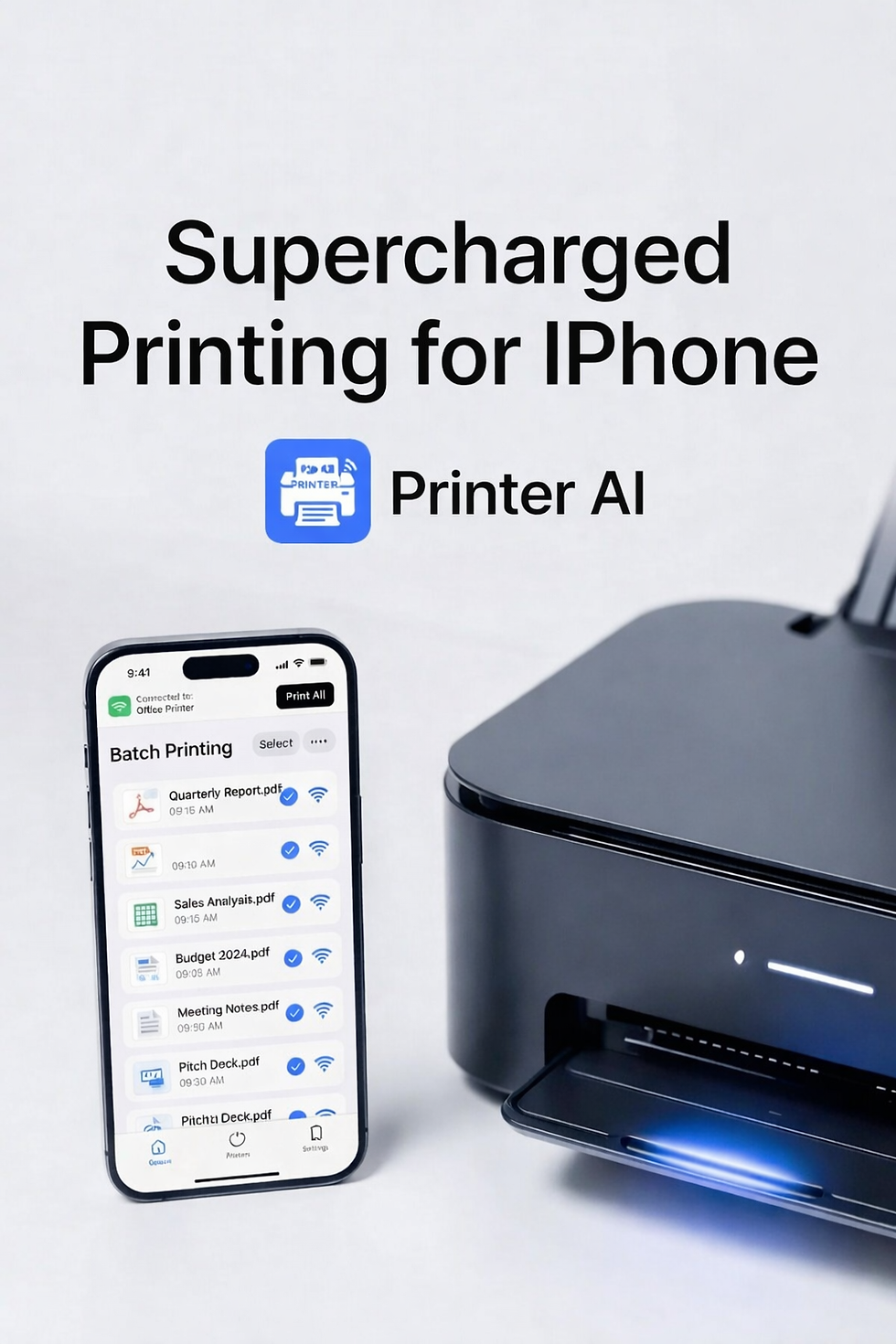
Printer not AirPrint-ready? No stress — just download Printer AI and print straight from your iPhone in seconds!
A dedicated printing app can be useful when you regularly work with different file formats or want additional document tools before printing.
For example, Printer AI: Print Documents App can manage documents and printing on an iPhone. Depending on the supported features and printer, it can help with PDFs, photos, documents, scanning, and cloud files.
Why Use a Printer App for iPhone?
A printer app can be useful when you want more than basic AirPrint functionality.
Print Different Types of Files
Instead of switching between multiple apps, a dedicated printing app can provide a central place to manage documents, PDFs, photos, and other supported files.
Manage PDFs Before Printing
PDF tools can make it easier to prepare a document before sending it to the printer. Useful options may include:
Converting images to PDF
Merging PDF files
Extracting pages
Adding pages
Removing pages
Splitting PDF files
Print from Cloud Storage
If your documents are stored online, cloud integration can make them easier to access before printing. Supported services may include iCloud, Google Drive, and Dropbox.
Scan and Print Documents
A document scanner can turn your iPhone camera into a convenient scanning tool. You can scan a physical document, adjust the scanned image, save it, and print it when needed.
Manage Multiple Documents
For teachers, students, and business users, printing several documents can be a regular task. A printing app with document-management or batch-printing capabilities can make this process more convenient.
Wireless Printing iPhone: Tips for Better Results
If your iPhone cannot find the printer, try these simple checks:
Make sure the printer is turned on.
Confirm that the iPhone and printer are connected to the same Wi-Fi network.
Check that the printer has paper and sufficient ink or toner.
Restart both the iPhone and printer.
Check for printer firmware or software updates.
Make sure the printer supports the printing method you are using.
Apple also recommends checking the printer manufacturer's information if you are unsure whether your printer supports AirPrint.
Common iPhone Printing Problems
Printer Not Found
First, check the Wi-Fi connection on both devices. If the printer still doesn't appear, restart the printer and iPhone and try again.
Poor Print Quality
Check the printer's ink or toner, paper type, and print settings. If necessary, clean the printer heads according to the manufacturer's instructions.
Final Thoughts
Learning how to print from iPhone is easier than ever. If you have an AirPrint-compatible printer, you can print wirelessly from supported iPhone apps without installing additional drivers.
For users who need more flexibility with PDFs, documents, cloud files, scanning, or document management, a dedicated printer app for iPhone can provide additional options.
Whether you're printing a school assignment, business document, photo, or PDF, choosing the right printing method can make the process faster and more convenient.


Comments